Key Takeaways (TL; DR): QR code check-in replaces manual guest lists with instant ticket scanning at the door. Each attendee receives a unique QR Code tied to their ticket. Scan it, and the system shows Valid, Invalid, Duplicate, or Expired in under two seconds. Real-time attendance data helps you track arrivals, identify no-shows, and monitor entry flow as it happens. Ticket Generator's free Ticket Validator app supports multi-gate scanning from any smartphone with no special hardware required. Organizations like Antioch University and KHreative Works use QR check-in to process hundreds of guests with near-zero errors.
QR code check-in is the process of scanning a unique QR code on each attendee's ticket to validate entry, record attendance, and flag duplicates, all in real time. It replaces clipboard guest lists, printed spreadsheets, and manual name-checking at the door.
The shift is accelerating. At Salesforce's Dreamforce 2024, 30,000 attendees used QR-based digital passes, resulting in check-in times three times faster than traditional methods. That's not a pilot program, it's the new baseline for professional events.
Did you know that 47% of event professionals now use QR codes to improve operational efficiency and attendee engagement? Source: Upmetric, 2024
If you've ever watched a line snake around a venue lobby while your team frantically scans a printed spreadsheet, you know why this matters. Every minute of check-in delay costs you goodwill, schedule time, and staff energy.
This guide covers how QR scanning works at events, why it outperforms manual methods, how to set it up step by step, what to look for in a check-in system, and how Ticket Generator handles the entire process from ticket creation to door scanning.
A. How does QR code check-in actually work?
The process works in three steps: generate unique QR codes on each ticket, distribute tickets to attendees digitally, and scan those codes at the door with a smartphone app that validates each entry against your event database.
Here's the flow in detail:
Registration or ticket creation: When an attendee registers or you generate their ticket, the platform assigns a unique QR code and a unique ticket ID. No two tickets share the same code.
Distribution: The ticket (with QR code) is delivered via email, SMS, or WhatsApp. Attendees can show it on their phone screen or print it.
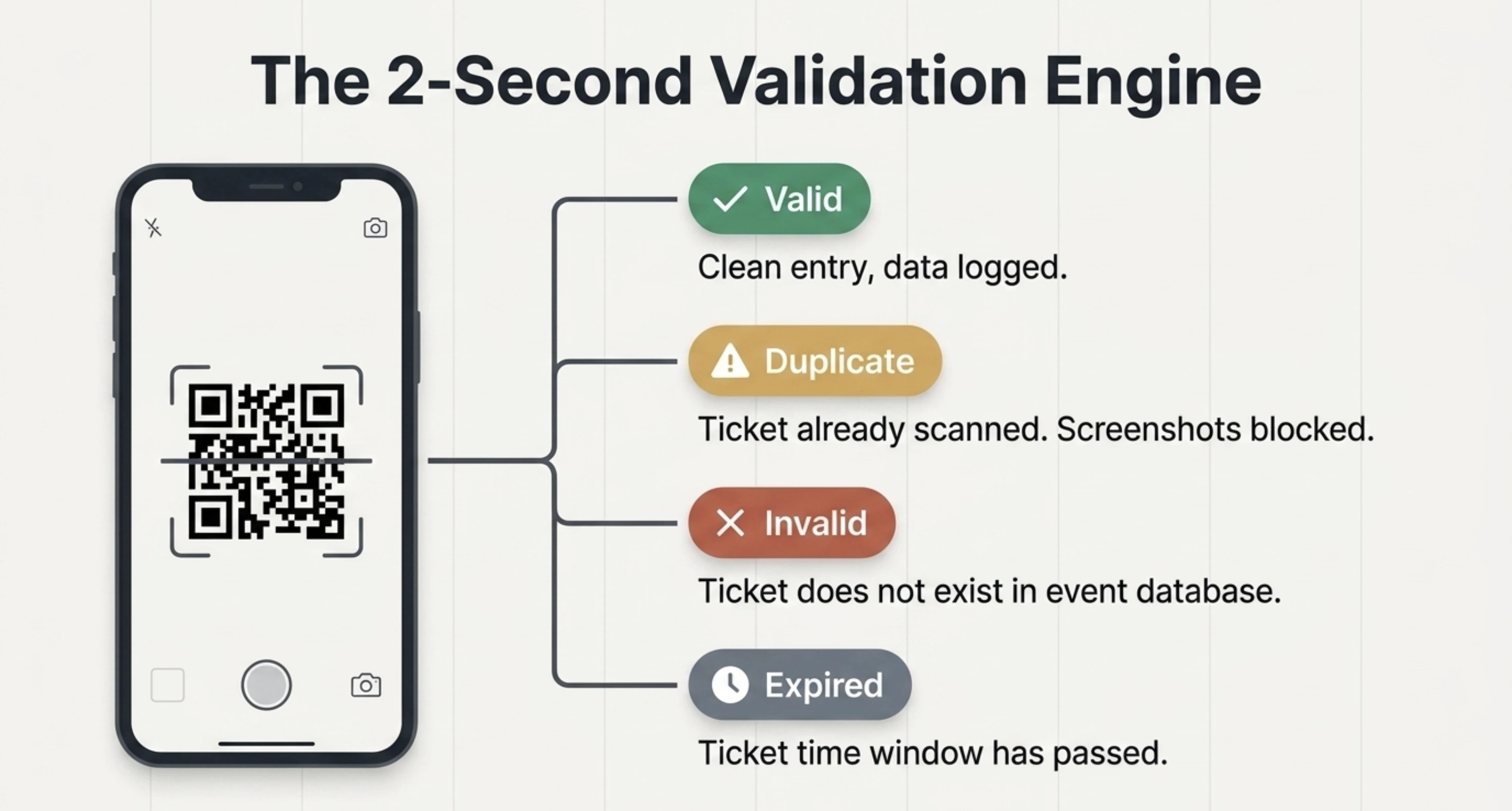
Scanning at the door: Your check-in staff opens a validator app on any smartphone. They point the camera at the QR code. The app instantly returns one of four results: Valid, Invalid, Duplicate, or Expired.
Real-time sync: Every scan updates your attendance dashboard in real time. You can see exactly how many people have checked in, when they arrived, and whether anyone tried to re-enter with the same ticket.
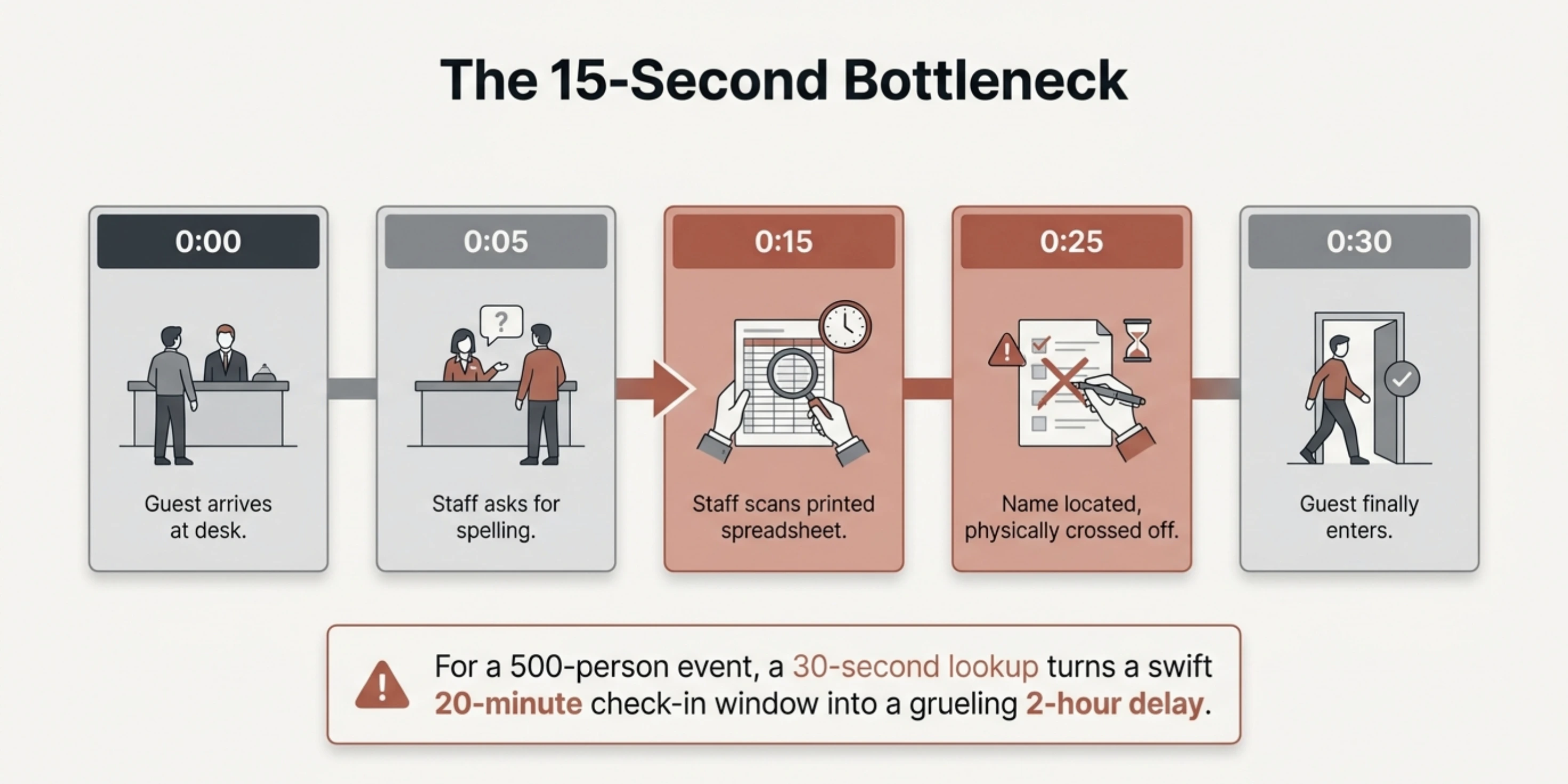
The entire scan-to-result cycle takes under two seconds. Compare that to 15–30 seconds per name lookup on a printed guest list, and you can see why organizations running events of any size are making the switch.
Pro Tip: With Ticket Generator, every ticket automatically receives a unique QR code, even if you upload a custom design. The system embeds it for you, so there's no manual step to add QR codes.
B. Why is QR scanning better than manual check-in methods?
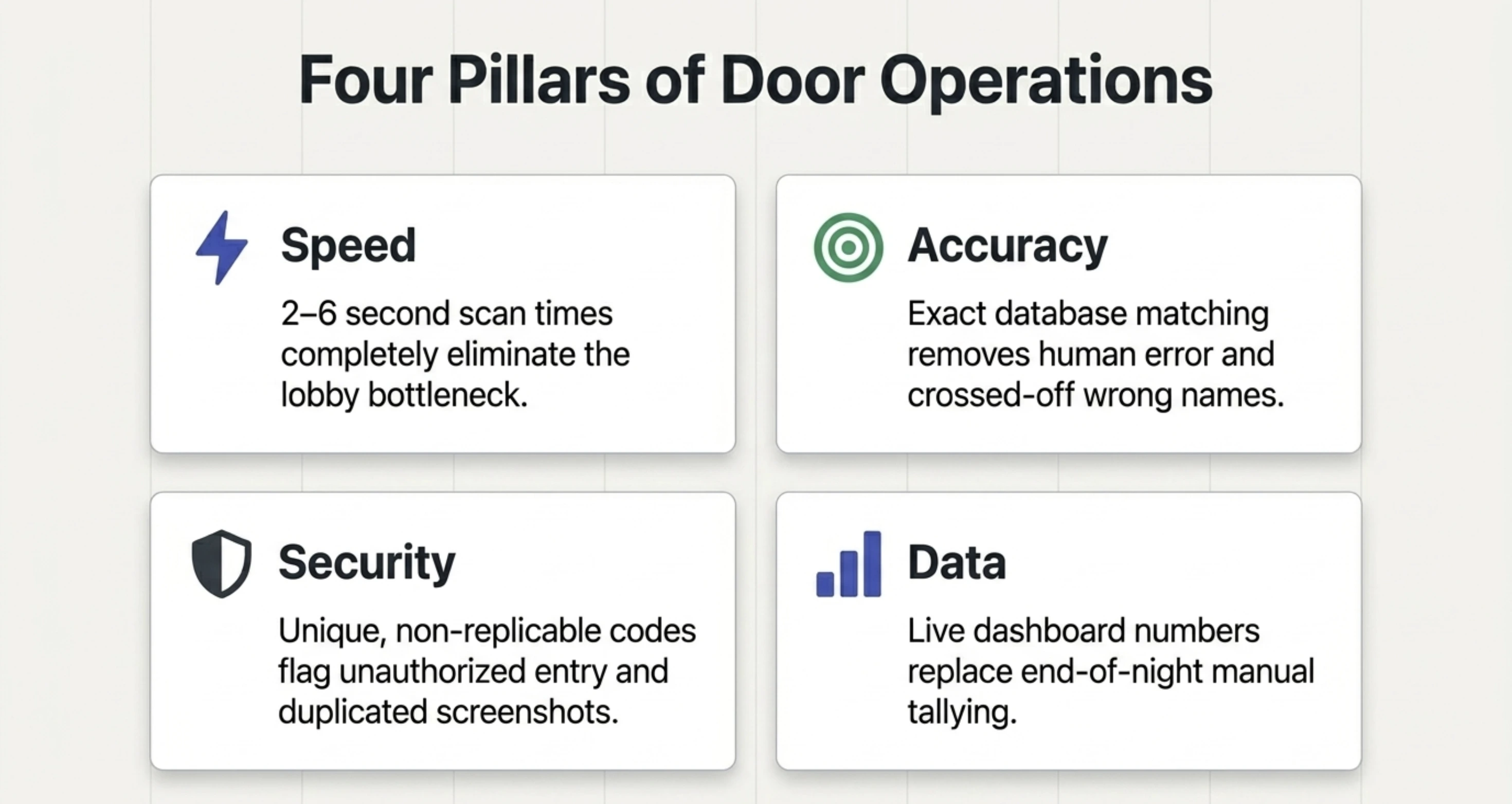
QR check-in outperforms manual methods on speed, accuracy, security, and data. Here's how each advantage plays out at your event.
1. Speed
A single QR scan takes 2–6 seconds. Manual name lookup on a printed list takes 15–30 seconds per person, longer if the name is misspelled or the guest isn't on the right list. For a 500-person event, that's the difference between a 20-minute check-in window and a 2-hour bottleneck.
2. Accuracy
Manual lists are prone to human error: crossed-off wrong names, illegible handwriting, missed entries. QR scanning eliminates all of these. The system matches the code to the database, there's no interpretation involved.
3. Security
Every QR code is unique. If someone screenshots a friend's ticket and tries to use it, the system flags it as a duplicate on the second scan. Manual lists have no way to detect this.
4. Real-time data
With manual check-in, you don't know your actual attendance count until someone tallies the paper list after the event. With QR check-in, you see live numbers on your dashboard as people walk through the door.
QR scanning vs. manual check-in
Factor
QR Scanning
Manual Check-In
Check-in speed
2–6 seconds per scan
15–30 seconds per name lookup
Duplicate detection
Instant. Flagged on second scan.
None. Relies on staff memory.
Attendance data
Real-time dashboard, exportable
Manual count after event
Hardware needed
Any smartphone with camera
Printed lists, pens, clipboards
Error rate
Near zero
High. Misspellings, missed names.
Multi-gate support
Unlimited devices, synced
Separate lists per gate, no sync
Cost at scale
Included in ticket platform
Staff time + printing
Did You Know? The mobile segment held 55% of revenue share in online event ticketing in 2023.
Source: Global News Wire.
That means more than half your attendees are already arriving with a phone in hand, ready to show a QR ticket. The infrastructure is there. The question is whether your check-in process is ready to meet it.
Try Ticket Generator to set up QR scanning for your next event! Generate unique QR tickets, distribute via email/SMS/WhatsApp, and validate at the door with the free Ticket Validator app. Your event. Your revenue. Your rules.
Set Up Event Ticketing and Distribution in Minutes!
First 10 tickets free | Free account | No credit card required
Setting up QR scanning is straightforward when your ticketing platform handles the heavy lifting. Here's the process using Ticket Generator.
Step 1: Create your free account
Go to Ticket Generator and sign up with your email or Google account. You won't be asked for any credit card details. Your free account comes with 10 ticket credits — one credit per ticket — so you can test the full platform before spending anything.
Once logged in, you'll land on the main dashboard.
Step 2: Create your event
Click Create New Event in the left sidebar. Fill in your event details:
Event name
Date, time, and time zone
Venue or location
Whether tickets are free or paid
Single entry or multiple re-entry per ticket
That's it. Your event is now live in the system and ready for tickets.
Step 3: Design your QR code ticket
Head to the Ticket Design tab inside your event. You have three options:
Use a ready-made template — Choose from a range of pre-designed templates by event type
Customize the standard design — Add your logo, background image, brand colors, and event details
Upload your own design — If you've already designed a ticket in Canva or elsewhere, upload it here and TG will embed the unique QR code and ticket ID automatically
Every ticket generated gets its own unique QR code and ticket ID, no two tickets are the same, which prevents duplication, forgery, and unauthorized entry.
Pro tip: If you're using a custom upload, leave a clear space on your design for the QR code. The system places it automatically.
Step 4: Set up your registration page
If you want guests to register online rather than distributing tickets manually, set up an Event Page. This takes about two minutes.
Your event page is a mobile-optimized registration page you can share publicly or privately. Organizers can customize the form to capture name, email, phone number, and payment details for paid events.
Once someone registers, the system automatically generates their ticket and sends it, no manual work required on your end.
Step 5: Send tickets to your guests
You have four ways to get tickets to attendees:
Generate and send — Enter email addresses or phone numbers. Tickets are delivered instantly via email, SMS, or WhatsApp
Generate and download — Download print-ready PDFs for physical distribution or box office sales
Share a registration link — Guests self-register and receive tickets automatically after approval
Generate via API — For developers building automated workflows at scale
If an attendee doesn't receive their ticket, you can resend it instantly at no extra charge, using their email address, phone number, or ticket ID to locate their record.
Step 6: Scan tickets at entry
Download the free Ticket Validator app on iOS or Android. Add your team members as coordinators from the dashboard, they each get access on their own phones.
On event day:
Open the app and select your event
Tap Scan QR Code
Point at the attendee's ticket on their phone screen or printed copy
The app shows one of three results instantly:
✅ Valid — First scan, entry approved
🔁 Duplicate — Already scanned, entry blocked
❌ Invalid — Not a real ticket for this event
You can monitor all scans in real time from the dashboard, across every entry point simultaneously, to prevent fraud and ensure smooth entry management.
Multiple team members can scan at the same time. No hardware needed. Just phones.
Step 7: Review your attendance report
After the event, open the Analytics tab. You'll see:
Total tickets issued vs. tickets scanned
Check-in times and peak entry periods
No-show count
Per-coordinator scan activity
Reports can be exported in XLSX or PDF format for post-event review, sponsor reporting, or planning your next event.
Remember to download the Ticket Validator app. Install the free Ticket Validator app on iOS or Android, or use the web version at validate.ticket-generator.com. Log in with your Ticket Generator account. Open the app, point your phone camera at each guest's QR code, and get an instant result: Valid, Invalid, Duplicate, or Expired. Multiple staff can scan simultaneously at different gates, all synced to the same dashboard.
Pro Tip: For multi-gate events, assign Coordinator roles to your check-in staff. Coordinators get scanning access to their specific event without seeing your full Ticket Generator dashboard — keeping your account secure while giving them the tools they need.
D. What should you look for in an event check-in system?
Not every QR check-in tool is built the same. Here are five criteria that separate reliable systems from the ones that fail you on event day.
Instant validation: The scan-to-result cycle should take under 3 seconds. Anything slower creates lines.
Duplicate detection: The system should flag a ticket immediately on its second scan. Without this, one screenshot can become twenty free entries.
Multi-device support: Your check-in team needs to scan from multiple phones at multiple entry points, all synced to the same database in real time.
Real-time dashboard: You should be able to see live attendance numbers, entry patterns, and flagged incidents from a central dashboard, not after the event, during it.
No special hardware: If the system requires proprietary scanners or dedicated tablets, it adds cost and complexity. The best systems work on any smartphone with a camera.
Secondary considerations include offline fallback capability, integration with your registration and payment systems, and exportable post-event reports.
E. How does Ticket Generator handle event check-in?
Ticket Generator is built for organizers who want the full loop (from ticket creation to door scanning to post-event analytics) without stitching together separate tools.
Here's what the platform covers for check-in specifically:
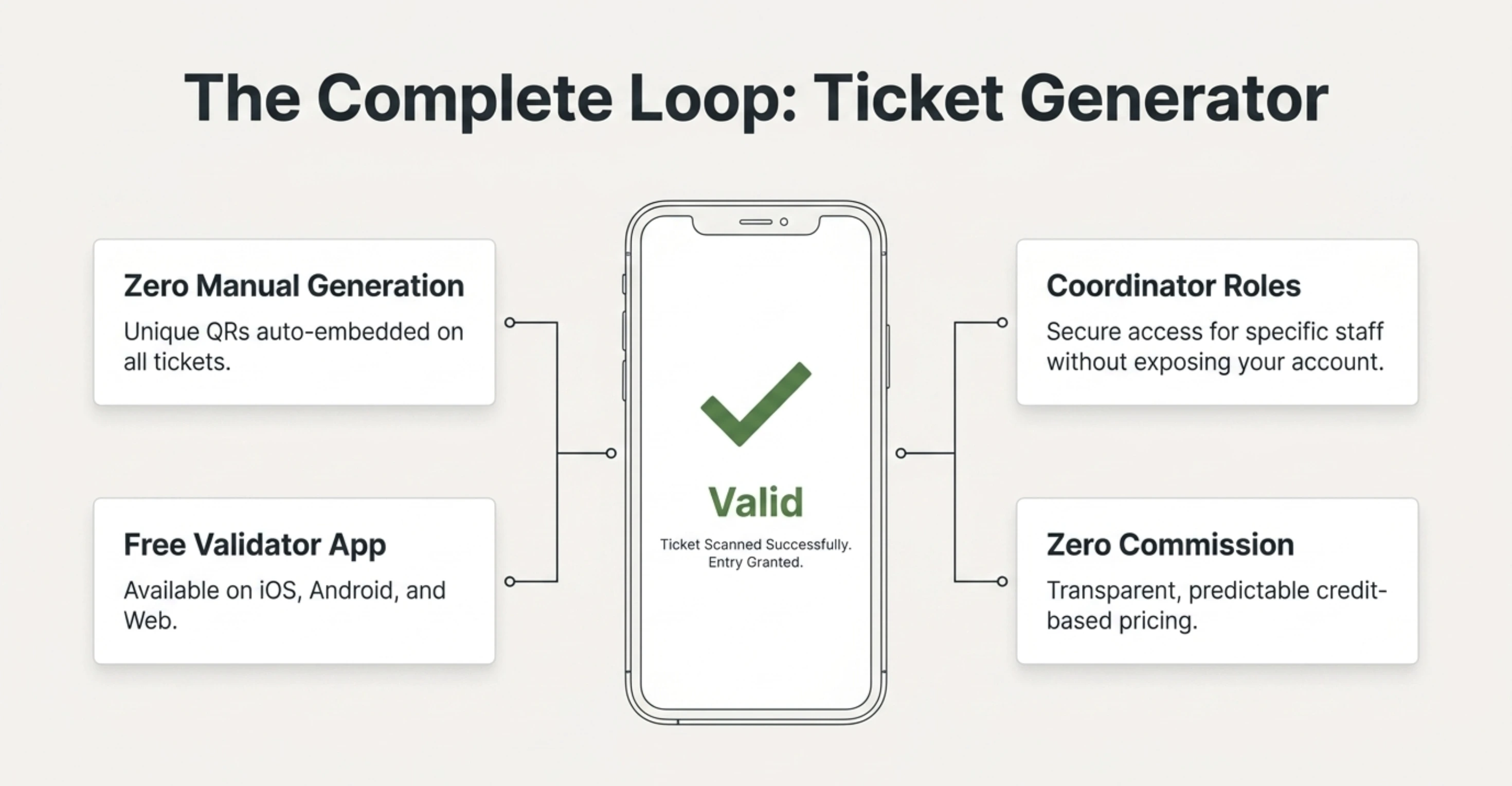
Automatic QR code generation: Every ticket gets a unique QR code and ticket ID at creation. No separate QR generation step required, even on custom-uploaded designs.
Free Ticket Validator app: Available on iOS, Android, and web (validate.ticket-generator.com). Scan any guest's QR code and get an instant result: Valid, Invalid, Duplicate, or Expired.
Multi-gate, multi-device: Multiple staff scan simultaneously from different entry points. All scans sync to the same event dashboard in real time.
Re-entry support: For multi-day events or events with in-and-out privileges, ticket status resets at midnight automatically.
Real-time attendance analytics: Track total check-ins, entry times, no-shows, unauthorized entry attempts, and coordinator activity. Export as Excel or PDF.
Coordinator roles: Give check-in staff scanning access to their specific event without exposing your full account dashboard.
"The ability to check in using a QR Code... and the platform to scan tickets on the phone." — Elida Martinez, Antioch University, who used Ticket Generator for 1,700+ tickets across 3 events.
KHreative Works also achieved 98% max attendance and a 91% batch distribution rate across 680+ tickets using Ticket Generator's QR check-in and bulk distribution. Their conference registration became, in their words, "quicker, smoother, and better for the planet."
Did You Know?Ticket Generator has powered 1,000,000+ tickets across 30,000+ events in 100+ countries, serving organizations such as Deloitte, Verizon, Google, the Emmy Awards, and UNHCR. It is ISO 27001:2022 certified and GDPR-compliant.
Set Up Event Ticketing and Distribution in Minutes!
First 10 tickets free | Free account | No credit card required
F. What mistakes should you avoid when setting up digital check-in?
Even with good technology, poor implementation creates problems. Here are the most common mistakes and how to avoid them.
Skipping the test scan: Always test your validator app with a sample ticket before event day. Verify that it connects to the correct event and returns the expected result.
Single entry point for large events: If you have 500+ attendees, one scanning station creates a bottleneck. Set up multiple gates with separate devices, all synced to the same dashboard.
No internet backup plan: QR validation typically requires an internet connection. Ensure your venue has reliable Wi-Fi or mobile data. For outdoor venues, test signal strength at the entry points beforehand.
Forgetting to brief your staff: Check-in volunteers need to know what each scan result means (Valid vs. Duplicate vs. Expired) and what to do in each case. A 5-minute briefing saves 30 minutes of confusion.
Not enabling re-entry when needed: If attendees will leave and return (lunch breaks, multi-day conferences), make sure your ticket settings support re-entry. Otherwise, their ticket will show as "already used" on return.
Your check-in process is your event's first impression
Digital check-in with QR codes is no longer an upgrade, it's the standard. It's faster than manual lists, more accurate than spreadsheets, and gives you attendance data in real time instead of after the fact.
The technology is simple: unique QR codes on tickets, a smartphone app at the door, and a live dashboard that tells you exactly who's in the room. The question isn't whether to adopt digital check-in; it's how quickly you can move.
For organizers who want the full workflow (ticket creation, branded design, multi-channel distribution, QR validation, and real-time analytics) Ticket Generator handles it in one platform, with zero commission on ticket sales and predictable credit-based pricing.
Try Ticket Generator to set up QR scanning for your next event. Generate unique QR tickets, scan at the door with the free Ticket Validator app, and track attendance in real time. Your event. Your revenue. Your rules.
Set Up Event Ticketing and Distribution in Minutes!
First 10 tickets free | Free account | No credit card required
1. How fast is QR scanning compared to manual check-in?
A QR scan takes 2–6 seconds per attendee, compared to 15–30 seconds for a manual name lookup on a printed list. For a 500-person event, QR check-in can cut your total entry time by 70–80%.
2. Do attendees need a special app to show their QR code?
No. Attendees just show the QR code from their ticket — either on their phone screen (from an email, SMS, or WhatsApp message) or as a printed copy. The scanning app is only needed by your check-in staff.
3. Can multiple staff scan at different entry gates simultaneously?
Yes, if the platform supports multi-device syncing. Ticket Generator allows unlimited devices to scan simultaneously, all connected to the same event dashboard in real time. Each scan is instantly reflected across all devices.
4. What happens if someone tries to use the same QR ticket twice?
The system flags it as a "Duplicate" on the second scan. This prevents unauthorized re-entry and catches screenshot sharing. Ticket Generator's validator detects duplicates instantly and logs the attempt in your dashboard.
5. Does QR scanning work without internet?
Most QR validation systems, including Ticket Generator's Ticket Validator app, require an internet connection to validate tickets against the live database. Ensure your venue has reliable Wi-Fi or cellular data at entry points. Test connectivity before event day.
Ashish Chandra has spent 5+ years writing about event technology, covering topics such as ticket design, QR check-ins, attendee management, and event marketing strategy. As the Content Lead at Ticket Generator, Ashish has analyzed hundreds of real-world event workflows and ticketing setups, helping organizers across industries use QR-based tickets, event landing pages, and smarter ticketing systems to run smoother, better-attended events.
His writing is shaped by real user needs and the questions organizers ask most often: How do I sell more tickets? How do I avoid chaos at the door? How do I make my next event better than my last?
When he steps away from the screen, you'll likely find him hiking a quiet trail or tending his plants- his preferred way to reset.






.png)






.webp)

.svg)
.svg)