

Create Tickets in Google Docs Like a Pro (Quick & Free)
 Written byAshish ChandraLast updatedSeptember 8, 2026
Key Takeaways: You can create tickets in Google Docs for free using a simple table layout, your event details, and a print-ready PDF export. Plan first by gathering your event name, date, time, venue, and a unique ticket number, then move on to designing the ticket. A Google Docs ticket template can save time if you'd rather edit an existing design than build one from scratch. However, Google Docs has clear limitations: no automatic ticket numbering, no built-in QR codes, and no protection against fake or duplicate tickets. For secure, scannable tickets that you can track and validate at the gate, Ticket Generator is a better option.
If you want to create tickets in Google Docs, I have good news: you do not need Photoshop, a design course, or a single dollar to do it. Most people assume tickets require special software. They do not.
The short version is simple. Open a blank Google Doc, set the page size, drop in a table to control your layout, add your event details and branding, then download the file as a PDF and print. That is the whole process, and it really is free.
I have built quick tickets this way for small meetups, and it works well when the event is casual and the guest count is low. It is a great fit for small business owners, school fundraisers, community groups, and anyone planning on a budget.
In this guide, I will show you why Google Docs works for tickets, walk through the full step-by-step process, and cover the limits worth knowing before your event. By the end, you will know how to make a ticket on Google Docs, and when a dedicated tool is the smarter call.
Let's get straight to it.
Why would I make event tickets in Google Docs?
Google Docs is a solid choice for event tickets because it is free, familiar, and works on any device, which makes it ideal for small or casual events. It is just one of several ways to make event tickets, and it shines when the job is simple.
Here is why I reach for it when the job is simple:
- It is free. If you have a Google account, you already have everything you need.
- It is familiar. If you have ever made a document, letter, or to-do list, you can make a ticket.
- It works everywhere. Design at your desk, on a laptop at a coffee shop, or on your phone.
- It is collaborative. Share the doc and let a teammate edit or review in real time.
Once your tickets are ready, you can print them at home, email the PDF, or share a link if you want to go paperless. And if you would rather not start from a blank page, a Google Docs ticket template gets you most of the way there.
Pro Tip: Before you print or send your tickets, open them on a few different devices. Colors, fonts, and spacing can look different across screens, and a quick 30-second check can save you from distributing an entire batch that doesn't look the way you intended.
How do I create tickets in Google Docs step by step?
To create tickets in Google Docs, plan your details, set up the page, build the layout with a table, add your branding, and then export a print-ready PDF. Here is the full process.
1. Plan your ticket details
Before you open anything, jot down what every ticket needs:
- Event name (big and bold)
- Date and time
- Venue or location
- Seat number (if you assign seating)
- Entry instructions or contact info
- A unique ticket number for tracking and check-in
Also, think about branding. Even one accent color and a small logo make a plain ticket look intentional.
2. Set up your document
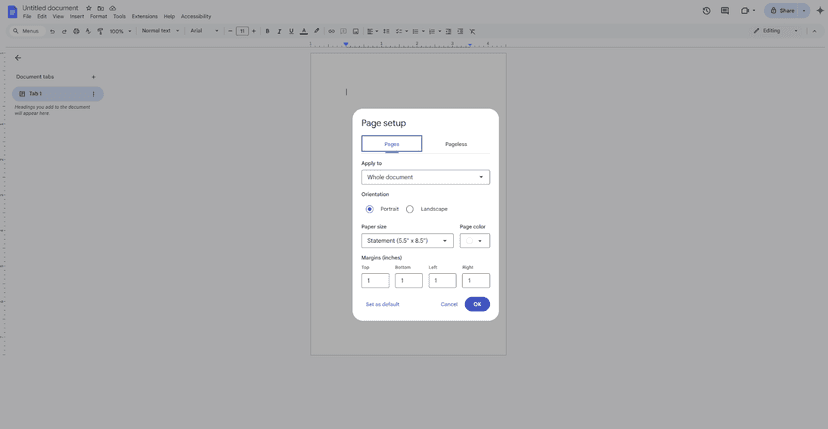
Open Google Docs and start a blank file. Go to File, then Page setup, and pick a size that suits a ticket. Two good options:
- Statement (5.5 in x 8.5 in) for larger tickets
- A5 (5.83 in x 8.27 in) for smaller ones
Switch to landscape if you want wide tickets, and shrink your margins to free up space. Then insert a table. Even a single-cell table gives you clean control over spacing. For multiple tickets per page, use a table with 2 or 3 columns and a few rows.
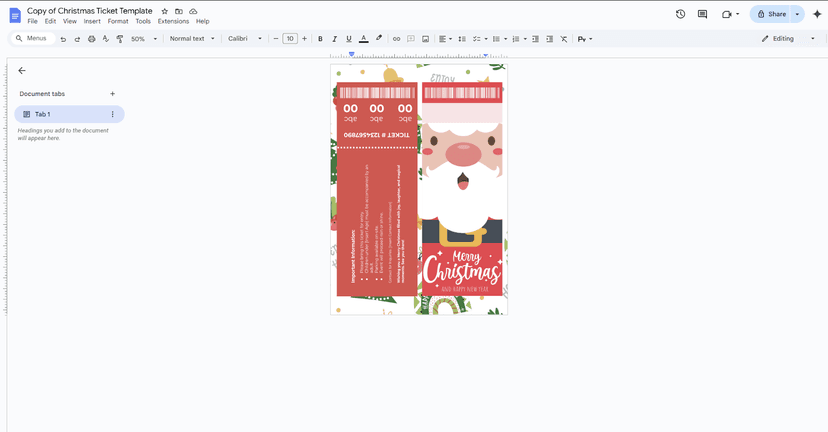
3. Use a ready-made template to save time
If you would rather not design from scratch, a Google Docs ticket template does the heavy lifting. You just swap in your text and branding. Two places to find free ones:
4. Build the layout (if starting from scratch)
Split the ticket into three clear zones so the eye flows from top to bottom:
- Top: event name and logo
- Middle: date, time, and venue
- Bottom: seat number, ticket number, and any notes
Add thin borders or lines between zones for a clean, scannable look.
5. Add your event details and branding
Now fill it in. Make the event name the largest text, bold and centered, so no one misses it. Below it, add the date, time, and place in a clear font like Arial, Open Sans, or Poppins. To add a logo, go to Insert, then Image. Keep color simple: one strong accent is plenty. Too many colors and the ticket starts to look busy.
6. Format it so it looks polished
Neat beats fancy. A few quick rules:
- Use one font for the details, and let the event name have its own style.
- Pick left-aligned or centered, not a mix.
- Bold the most important lines, like date and time.
- Leave a little breathing room between sections so nothing feels cramped.
7. Review, save, and print
Zoom out and check the whole page. Is everything aligned? Does the event name pop? When it looks right, go to File> Download> PDF Document (.pdf). A PDF keeps your layout locked for printing. Print on thicker paper at home for a sturdier feel, or send the file to a local print shop for larger runs.
Want tickets that number themselves and carry a scannable QR code from the start? Try Ticket Generator to automate the entire process. You can also start with its free, ready-made downloadable ticket templates, then add unique QR codes, personalize every ticket, and distribute them in minutes.
What are the limits of making tickets in Google Docs?
Google Docs works for simple tickets, but it was built for writing, not ticketing, so it cannot number tickets automatically, add secure QR codes, or stop fakes and duplicates. Here are the trade-offs worth knowing before your event.
1. Limited design control
Google Docs is a word processor, not a design tool. Angled text, layered graphics, and precise positioning get frustrating fast. Simple layouts are your friend here.
2. No bulk numbering
Need 100 unique tickets? Google Docs has no auto-numbering, so you are typing numbers by hand or copying them from a spreadsheet. That gets messy and error-prone at volume.
3. No real security
This is the big one. A ticket that is just text and an image is easy to screenshot, copy, or fake. Without a unique code on each ticket, you have no reliable way to catch a duplicate at the door.
Did You Know? Ticket fraud losses in the UK jumped by nearly 50% in 2024, reaching £9.7 million. Source: Action Fraud, the UK's national fraud and cybercrime reporting service (2024).
That risk is exactly why event professionals rely on unique QR codes.
"The most common mistake we see is organizers using a generic QR generator and realizing that this way every attendee will have the same code. Also, those generators can't help you stop duplicates."
— Anshul Singh Bisht, Head of Event Technology, Ticket Generator
4. Easy to share by accident
If you forget to lock your file’s sharing settings, anyone with the link can edit your tickets. Always set sharing to “Viewer only” before you send.
5. Not built for bigger events
For a backyard party or a class fundraiser, Google Docs is fine. For a paid event, a large crowd, or anything where a fake ticket costs you money, you will want a proper tool. If you are printing at home, my guide on how to make paper tickets covers the physical side well, and if you want to weigh every DIY route, see create your own tickets.
Google Docs tickets vs a dedicated ticket generator: what is the real difference?
Google Docs gives you a free, static ticket you design and print yourself. A dedicated ticket generator gives you secure, numbered, scannable tickets you can send, validate, and track. Here is a side-by-side look.
|
What matters |
Google Docs (DIY) |
Ticket Generator |
|---|---|---|
|
Cost |
Free |
Credit-based, pay per ticket, no commission |
|
Design |
Manual, basic layouts |
Drag-and-drop designer plus AI ticket design |
|
Unique ticket numbers |
Manual, one at a time |
Automatically generated on every ticket |
|
QR code security |
Not built in |
Unique QR code and ticket ID on every ticket |
|
Duplicate detection |
None |
Duplicates flagged instantly during scanning |
|
Distribution |
Print or email manually |
Batch delivery via email, SMS, and WhatsApp |
|
Check-in |
Visual verification only |
Scan and validate using a smartphone app or web validator |
|
Attendance tracking |
None |
Real-time attendance reports with export support |
For a casual event, the left column is genuinely enough. The moment security, scale, or reporting matters, the right column starts saving you real time and worry.
How does Ticket Generator make secure tickets faster?
Ticket Generator is built for organizers who want professional, secure tickets without the manual work or a per-sale commission. Where Google Docs stops at a static design, Ticket Generator takes you from ticket to check-in in one workflow.
Here is what that looks like in practice:
- Design fast. Use the drag-and-drop designer, upload your own art, or let AI ticket design generate a branded ticket from your event details. You can even connect Canva, edit there, and import the design straight back.
- Secure every ticket. Each ticket carries a unique QR code and a unique ticket ID, so duplicates get flagged the instant they are scanned.
- Send at scale. Deliver tickets by email, SMS, or WhatsApp in batches of up to 1,000 per send, or schedule the whole batch to go out at a set time.
- Validate and track. Scan tickets at the gate with the Ticket Validator app, catch fakes and re-entries, and watch attendance update in real time.
This matters more every year as events go mobile. According to Mordor Intelligence, roughly 58% of online event ticketing transactions happened on mobile devices in 2025, so a scannable digital ticket is quickly becoming the default rather than a nice-to-have.
The platform is trusted at scale, with more than 1,000,000 tickets generated across 30,000+ events in 100+ countries, and it is ISO 27001:2022 certified, GDPR-compliant, and SOC 2 aligned. If you have outgrown a free ticket maker but do not want enterprise complexity, that middle ground is exactly where Ticket Generator sits. You can also add security to any design with a QR code ticket generator.
Wrapping up
Creating tickets in Google Docs is a smart, no-cost move for small and casual events. Now you know the full process: plan your details, set up the page, build a clean three-part layout, add your branding, and export a print-ready PDF.
It is not the fanciest tool, and it cannot number tickets, add QR codes, or stop fakes. For a low-key event, that is fine. For anything where security, scale, or reporting counts, a purpose-built tool pays for itself in saved time and fewer headaches. Google Docs gets you a ticket. A platform like Ticket Generator gets you a system.
Try Ticket Generator to create secure, scannable tickets in minutes, then send, validate, and track them from one place. Your event. Your revenue. Your rules.
FAQs: creating tickets in Google Docs
1. Can I create tickets in Google Docs for free?
Yes. Google Docs is completely free with any Google account, so you can create tickets in Google Docs without paying for software. You only spend money if you choose to print them.
2. Do I need design skills to make a ticket in Google Docs?
No. If you can build a basic document, you can make a ticket. A Google Docs ticket template removes most of the design work, so you just edit the text and add your logo.
3. Can Google Docs number my tickets automatically?
No. Google Docs has no built-in auto-numbering for tickets. You either type each number by hand or list them in Google Sheets and copy them across, which gets tedious for large batches.
4. How do I add a QR code to a Google Docs ticket?
You would generate a QR code elsewhere and insert it as an image, but every ticket would carry the same static code, which offers no real security. For unique, scannable codes and duplicate detection, a tool like Ticket Generator issues a distinct QR code and ticket ID on every ticket.
5. Are tickets made in Google Docs secure?
Not really. Google Docs tickets are static files that anyone can screenshot or copy, and there is no way to validate them at the door. If fake or duplicate tickets would cost you money, use a platform that adds unique QR codes and gate-side scanning.
6. Should I use a Google Docs ticket template or design from scratch?
Use a template if you want something fast and easy, and design from scratch if you want full control over the look. Both work in Google Docs; the template just saves you time.
About the author
Content Marketer at Ticket Generator
Ashish Chandra has spent 5+ years writing about event technology, covering topics such as ticket design, QR check-ins, attendee management, and event marketing strategy. As the Content Lead at Ticket Generator, Ashish has analyzed hundreds of real-world event workflows and ticketing setups, helping organizers across industries use QR-based tickets, event landing pages, and smarter ticketing systems to run smoother, better-attended events. His writing is shaped by real user needs and the questions organizers ask most often: How do I sell more tickets? How do I avoid chaos at the door? How do I make my next event better than my last? When he steps away from the screen, you'll likely find him hiking a quiet trail or tending his plants- his preferred way to reset.
Latest posts
Check out our latest articles on the blog
 12 min read
Email Marketing for Events and Webinars: What to Send, When to Send It, and How to Automate It
A step-by-step playbook for email marketing for events and webinars. Learn what to send, when to send it, and how to automate every email for in person and virtual events.
Ashish Chandra
18 Oct 2026
 10 min read
Halloween Masquerade Ball: How to Host a Night of Masks and Mystery
From Venetian-inspired masks to QR-coded entry, here is your complete guide to planning a Halloween masquerade ball your guests will talk about for years.
Ashish Chandra
18 Oct 2026
 9 min read
Ticketmaster Reserved Seating: How It Works and a Better Fit for Smaller Events
Ticketmaster reserved seating works well for arenas. If you run a theatre, gala, or mid-size show, see how it works, what it costs, and how to switch.
Ashish Chandra
16 Oct 2026